Spaces — Isolated Workspaces
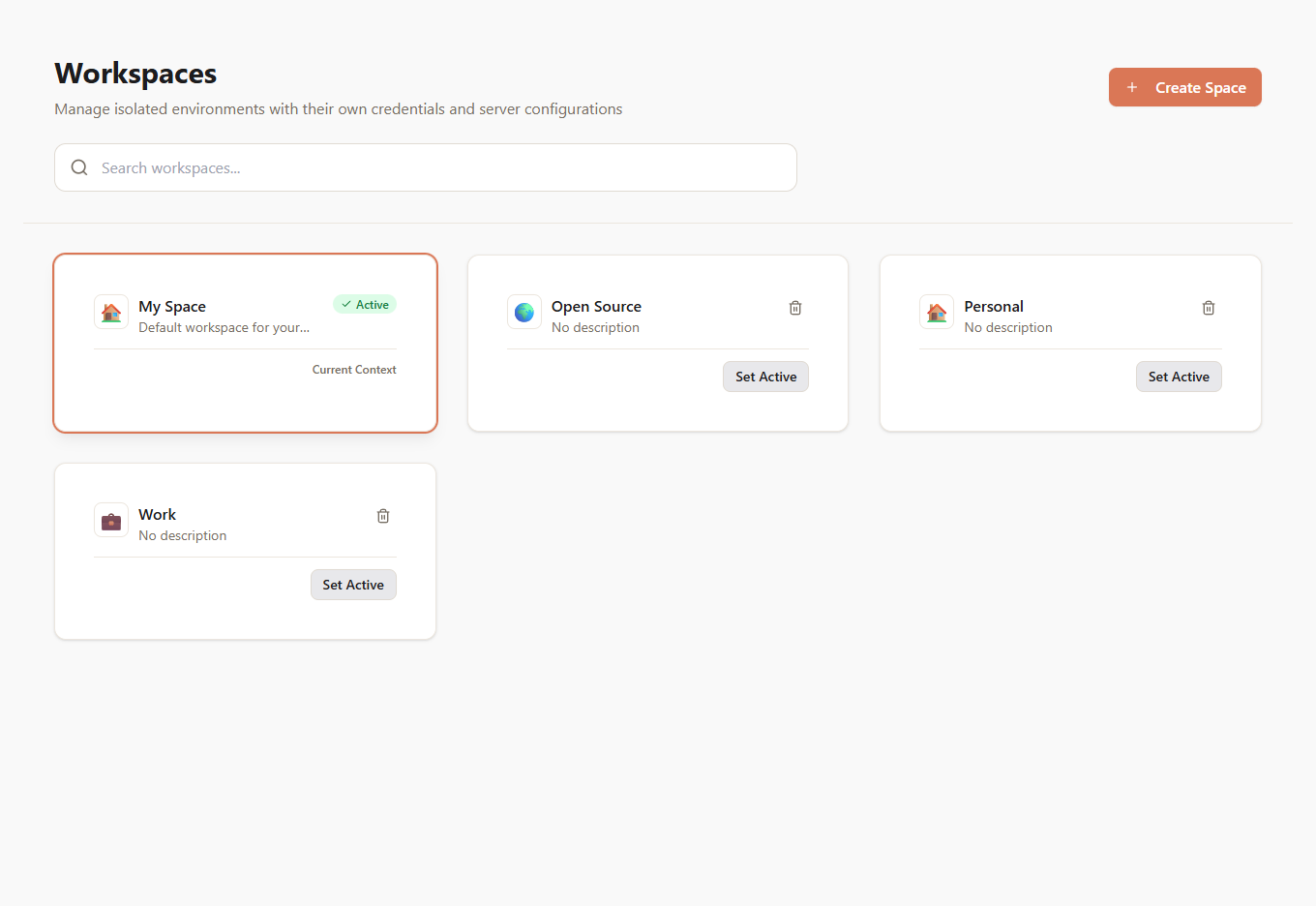
Spaces let you organize MCP servers into isolated environments with separate credentials. Keep work, personal, and client projects completely separated in McpMux.
Spaces are isolated workspaces in McpMux. Each Space has its own server configurations, credentials, and enabled servers — keeping different contexts completely separate.
Why Spaces
Without Spaces, all your MCP credentials and server configurations live in a single shared context. This means:
- Your work GitHub token is accessible alongside personal projects
- Client credentials from different customers can leak across contexts
- Switching between project contexts requires manual reconfiguration
- There's no way to limit which servers are available for which work
Spaces solve this by providing complete isolation between environments.
How Spaces Work
Each Space is an independent environment containing:
- Installed servers — which MCP servers are available in this Space
- Server configurations — per-Space credentials, environment variables, and settings
- FeatureSets — permission bundles scoped to this Space
- Client grants — which FeatureSets each AI client gets in this Space
Active Space
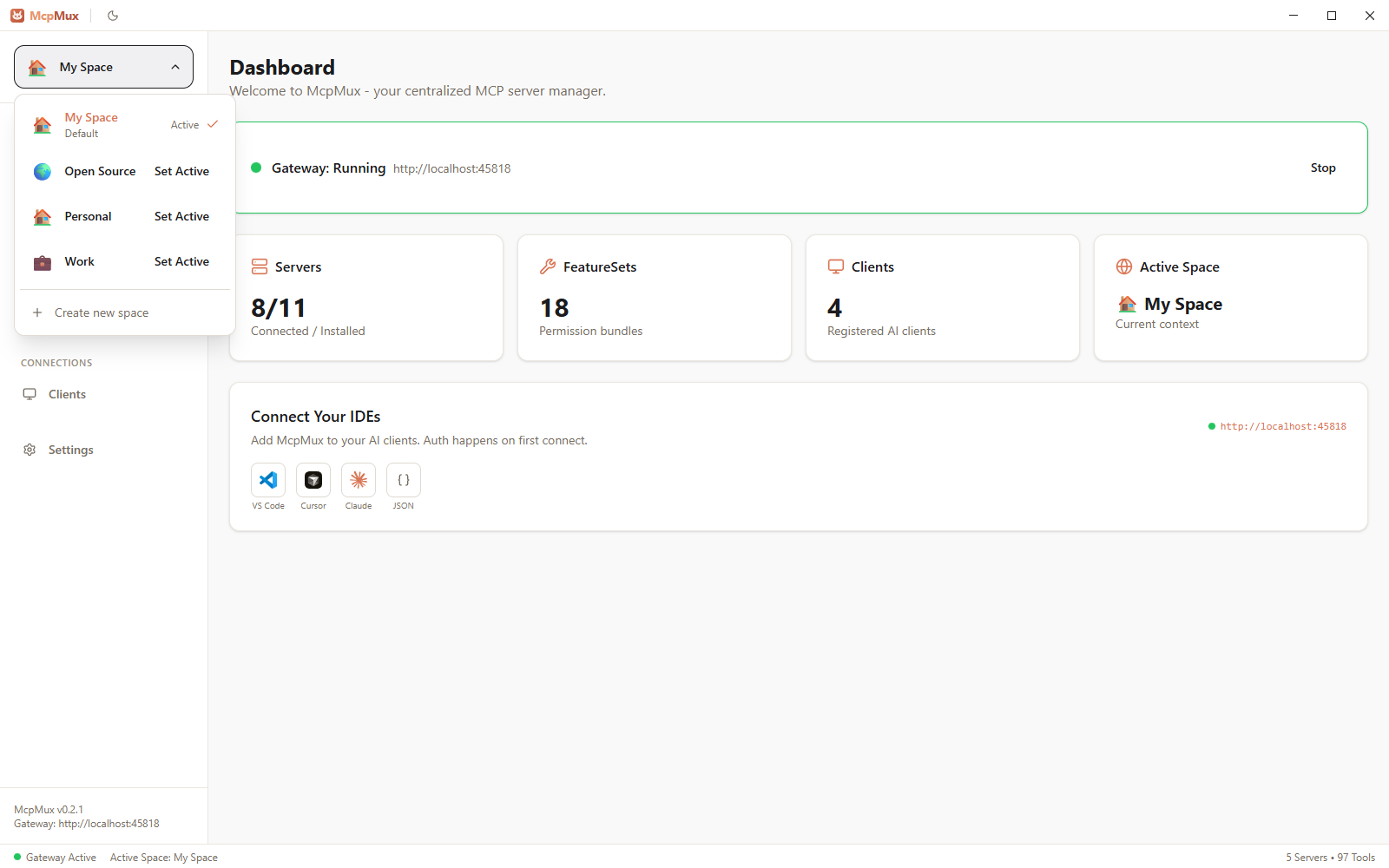
Only one Space can be active at a time. The active Space determines:
- Which servers the gateway connects to
- Which tools AI clients can see and use (for clients in "Follow Active" mode)
- Which credentials are injected into server connections
Switching the active Space immediately changes what servers and tools are available — no restart required.
Default-Enabled Servers
When you install a server, you can mark it as default-enabled. Default-enabled servers are automatically available in all Spaces without needing to install them individually. This is useful for universal tools like Filesystem or Brave Search that you want everywhere.
Common Space Configurations
Work vs Personal
The most common setup separates work and personal contexts:
| Work Space | Personal Space | |
|---|---|---|
| GitHub | Work org token | Personal token |
| Slack | Company workspace | — |
| AWS | Production credentials | Personal account |
| Notion | Team workspace | Personal workspace |
Multi-Client Freelancing
Freelancers and consultants can create a Space per client:
- Client-Alpha — their GitHub, Jira, and Slack
- Client-Beta — their GitHub and Linear
- Personal — your own tools and projects
Each client's credentials are completely isolated. There's no risk of accidentally using Client-Alpha's API key while working on Client-Beta.
Dev / Staging / Prod
For operations work, separate Spaces prevent accidentally running production commands:
- Development — local services, test databases
- Staging — staging API keys, staging databases
- Production — production credentials (used sparingly and intentionally)
Managing Spaces
Creating a Space
Navigate to Spaces in McpMux and click Create Space. Give it a name and optional icon.
Switching Active Space
Click on any Space to set it as active. The dashboard and server list update immediately to reflect the new context. AI clients using "Follow Active" mode switch automatically.
Deleting a Space
Deleting a Space removes all its server configurations and stored credentials. This action is irreversible. The servers themselves (their definitions) remain in the registry — only the per-Space installation and credentials are deleted.
Next Steps
- Configure FeatureSets to control permissions within a Space
- Set up Clients with connection modes that interact with Spaces
- Manage Servers to install and configure per-Space server instances
Getting Started with McpMux
Download McpMux, install your first MCP server, and connect Cursor, Claude, or VS Code in under 5 minutes. Step-by-step setup guide.
FeatureSets — Permission Control
FeatureSets control which MCP tools, resources, and prompts each AI client can access in McpMux. Create role-based permissions, domain bundles, or read-only views.