FeatureSets — Permission Control
FeatureSets control which MCP tools, resources, and prompts each AI client can access in McpMux. Create role-based permissions, domain bundles, or read-only views.
FeatureSets are permission bundles that control what MCP capabilities (tools, resources, and prompts) each AI client can access. They let you grant fine-grained permissions per client, per Space.
Why FeatureSets
Without permission control, every AI client connected through the gateway can access every tool from every server. This creates risks:
- A junior developer's client could access destructive database tools
- An experimental AI agent could call deployment tools
- A read-only analysis tool could accidentally modify production data
FeatureSets solve this by letting you define exactly what each client can do.
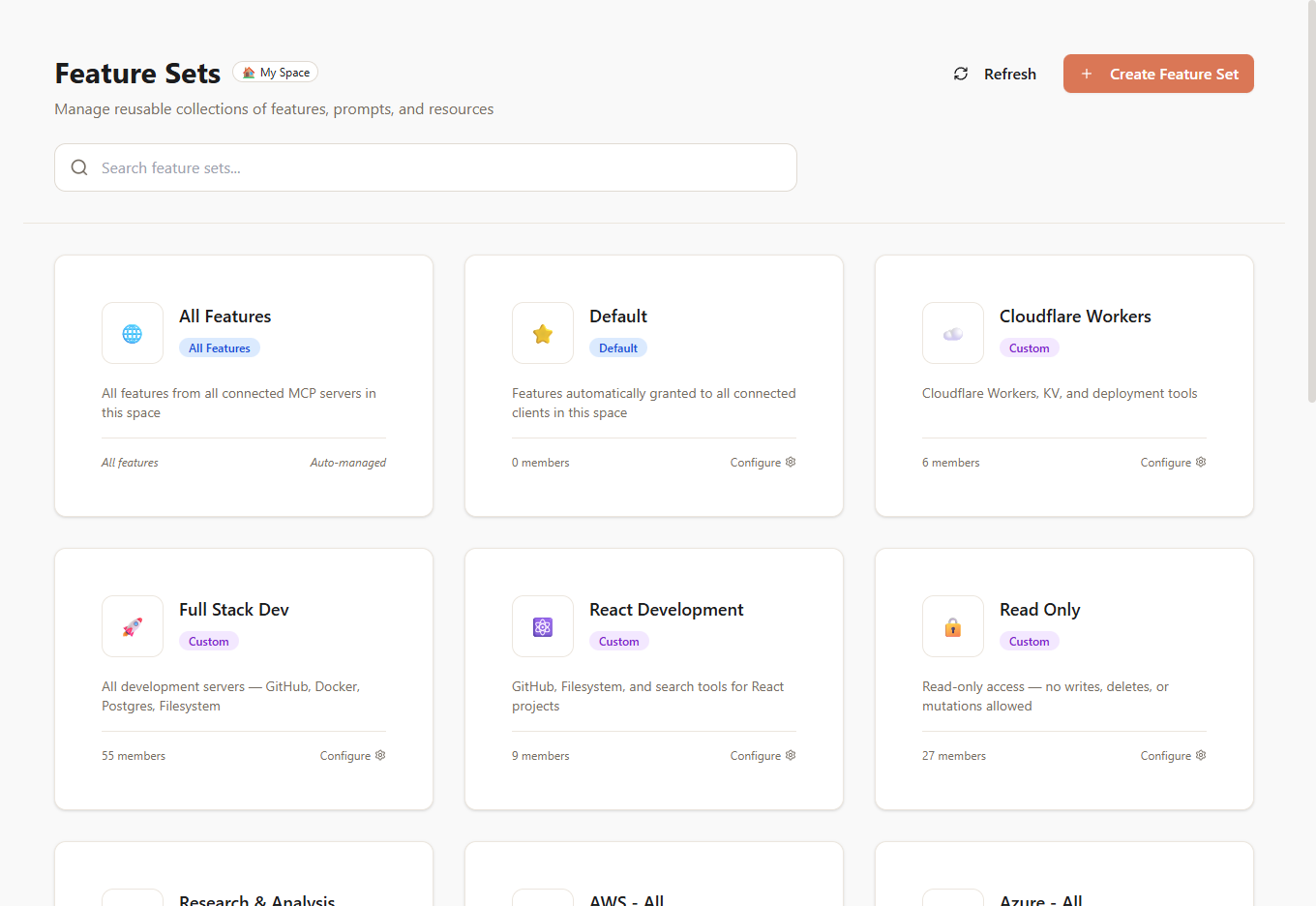
FeatureSet Types
McpMux creates and manages four types of FeatureSets:
All
Grants access to every tool, resource, and prompt from every connected server in the Space. Use this for fully trusted clients.
Default
Automatically granted to all clients in the Space. Define a baseline set of capabilities that every client gets. You can still add more FeatureSets on top for specific clients.
ServerAll
Automatically created when a server first connects. Grants access to all features from that specific server. For example, when you enable the GitHub server, McpMux creates a "GitHub — All" FeatureSet containing all of GitHub's tools and resources.
Custom
User-defined FeatureSets with manually selected features. This is where you build your own permission bundles.
Include and Exclude
Each FeatureSet member can be set to include or exclude mode:
- Include — add this tool/resource/prompt to the set
- Exclude — remove this tool/resource/prompt from the set
Exclude rules always win over include rules. This means you can create a permissive base and then remove specific dangerous tools:
Example: "All GitHub except delete operations"
- Include the GitHub — All ServerAll FeatureSet
- Exclude
delete_repository,delete_branch,delete_file
Composition
FeatureSets can contain other FeatureSets. This lets you build hierarchical permission structures:
- "Read Only" = Include tools that only read data from multiple servers
- "Android Development" = Include "GitHub — All" + "Firebase — All" + specific Gradle tools
- "Senior Developer" = Include "All" but exclude deployment and infrastructure tools
- "Intern" = Include "Read Only" + specific write tools for their assigned project
Common Use Cases
Role-Based Access
| FeatureSet | Contains |
|---|---|
| Read Only | Search, list, and read tools only |
| Developer | Read Only + code editing + PR management |
| DevOps | Developer + deployment + infrastructure |
| Admin | All capabilities |
Domain Bundles
| FeatureSet | Contains |
|---|---|
| Frontend | Browser tools + CSS/JS linting + design system resources |
| Backend | Database queries + API testing + log analysis |
| Full Stack | Frontend + Backend |
Safety Limits
| FeatureSet | Contains |
|---|---|
| No Delete | All minus any delete/remove/drop operations |
| No Deploy | All minus CI/CD and deployment tools |
| Sandbox | Only filesystem (read) + search + documentation |
Managing FeatureSets
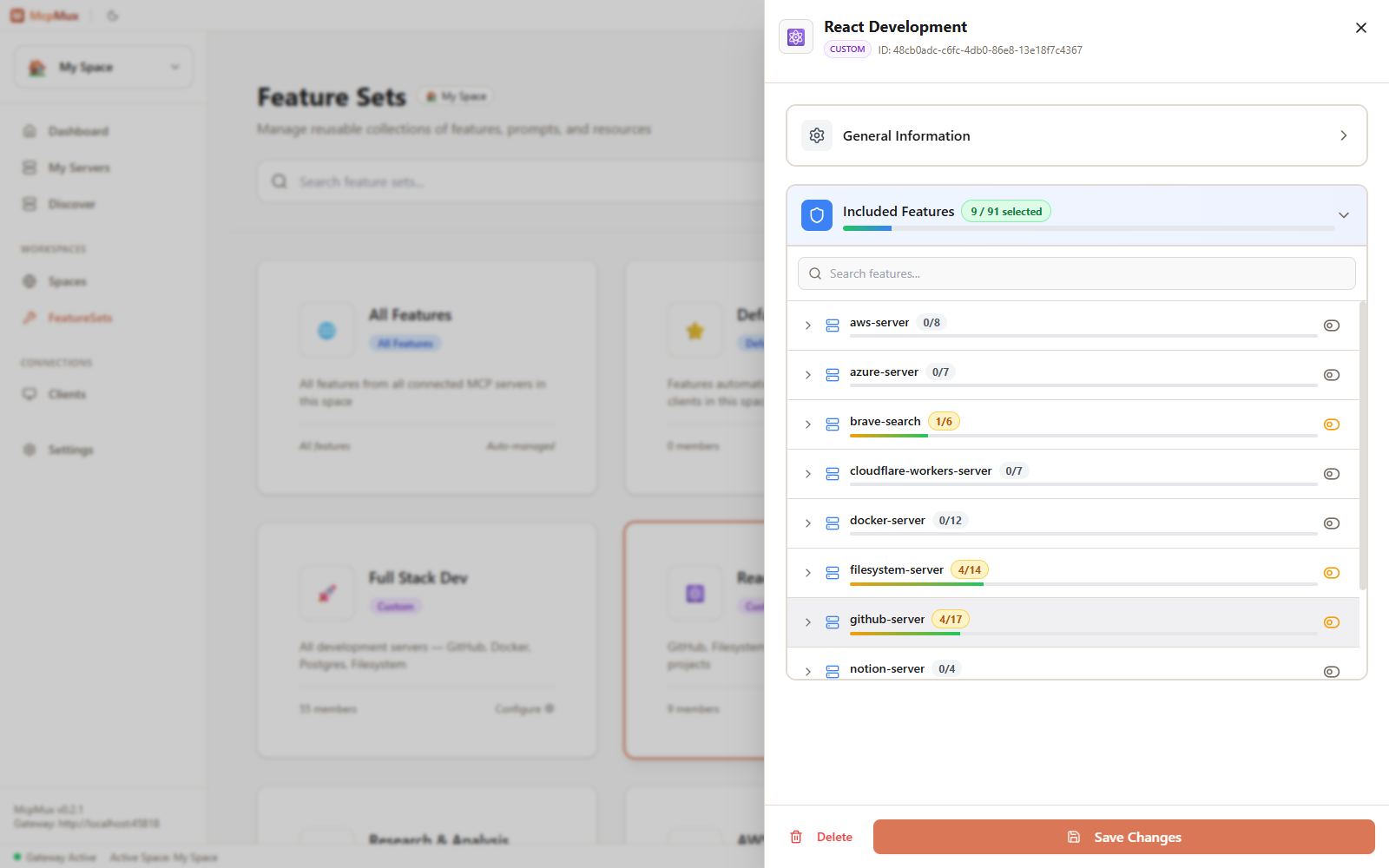
Creating a Custom FeatureSet
- Go to the FeatureSets page
- Click Create FeatureSet
- Give it a name and optional description
- Add members — select features or other FeatureSets
- Set each member to include or exclude mode
Assigning to Clients
FeatureSets are assigned to clients per Space. Go to the Clients page, select a client, and manage its FeatureSet grants for each Space.
A client's effective permissions are the combination of all its granted FeatureSets, with exclude rules taking priority.
Next Steps
- Set up Clients and assign FeatureSets per Space
- Learn about Spaces for environment isolation
- Understand the Gateway to see how permissions are enforced at request time
Spaces — Isolated Workspaces
Spaces let you organize MCP servers into isolated environments with separate credentials. Keep work, personal, and client projects completely separated in McpMux.
Clients — AI Application Management
Connect Cursor, Claude Desktop, VS Code, Windsurf, and other AI clients to McpMux. Configure connection modes and per-Space permissions for each client.