Clients — AI Application Management
Connect Cursor, Claude Desktop, VS Code, Windsurf, and other AI clients to McpMux. Configure connection modes and per-Space permissions for each client.
Clients are the AI applications that connect to McpMux's gateway to access MCP tools, resources, and prompts. McpMux lets you manage each client independently with its own permissions and Space behavior.
Supported Clients
McpMux works with any MCP-compatible client, including:
| Client | Type | Connection |
|---|---|---|
| Cursor | IDE | Streamable HTTP |
| Claude Desktop | Desktop App | Streamable HTTP |
| Claude Code | CLI | Streamable HTTP |
| VS Code (Copilot) | IDE | Streamable HTTP |
| ChatGPT Desktop | Desktop App | Streamable HTTP |
| Windsurf | IDE | Streamable HTTP |
| JetBrains IDEs | IDE | Streamable HTTP |
| Zed | Editor | Streamable HTTP |
| Gemini CLI | CLI | Streamable HTTP |
All clients connect to the same endpoint: http://localhost:45818/mcp
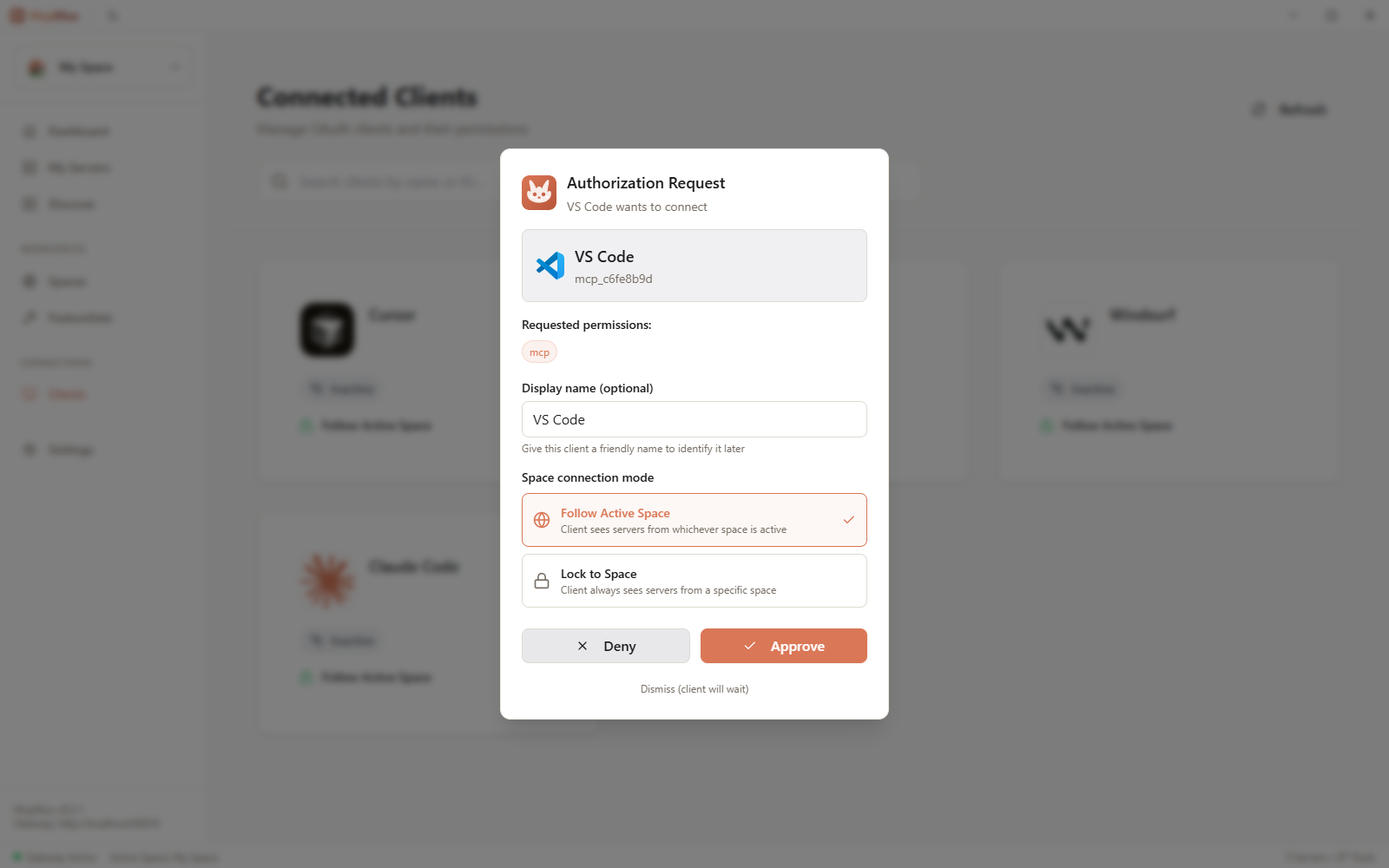
Connection Modes
Each client has a connection mode that determines how it interacts with Spaces:
Follow Active
The client automatically uses whichever Space is currently active. When you switch the active Space, the client immediately sees the new Space's servers and tools.
Best for: Your primary development tools that should always match your current context.
Locked
The client always uses a specific Space, regardless of which Space is active. This is useful for:
- A monitoring tool that should always see production servers
- A client dedicated to a specific project
- Background automation that shouldn't change behavior
Ask on Change
When the active Space changes, McpMux prompts you to confirm whether this client should switch too. This provides a safety net for important clients.
Best for: Clients with elevated permissions where an accidental Space switch could be problematic.
Per-Space Permissions
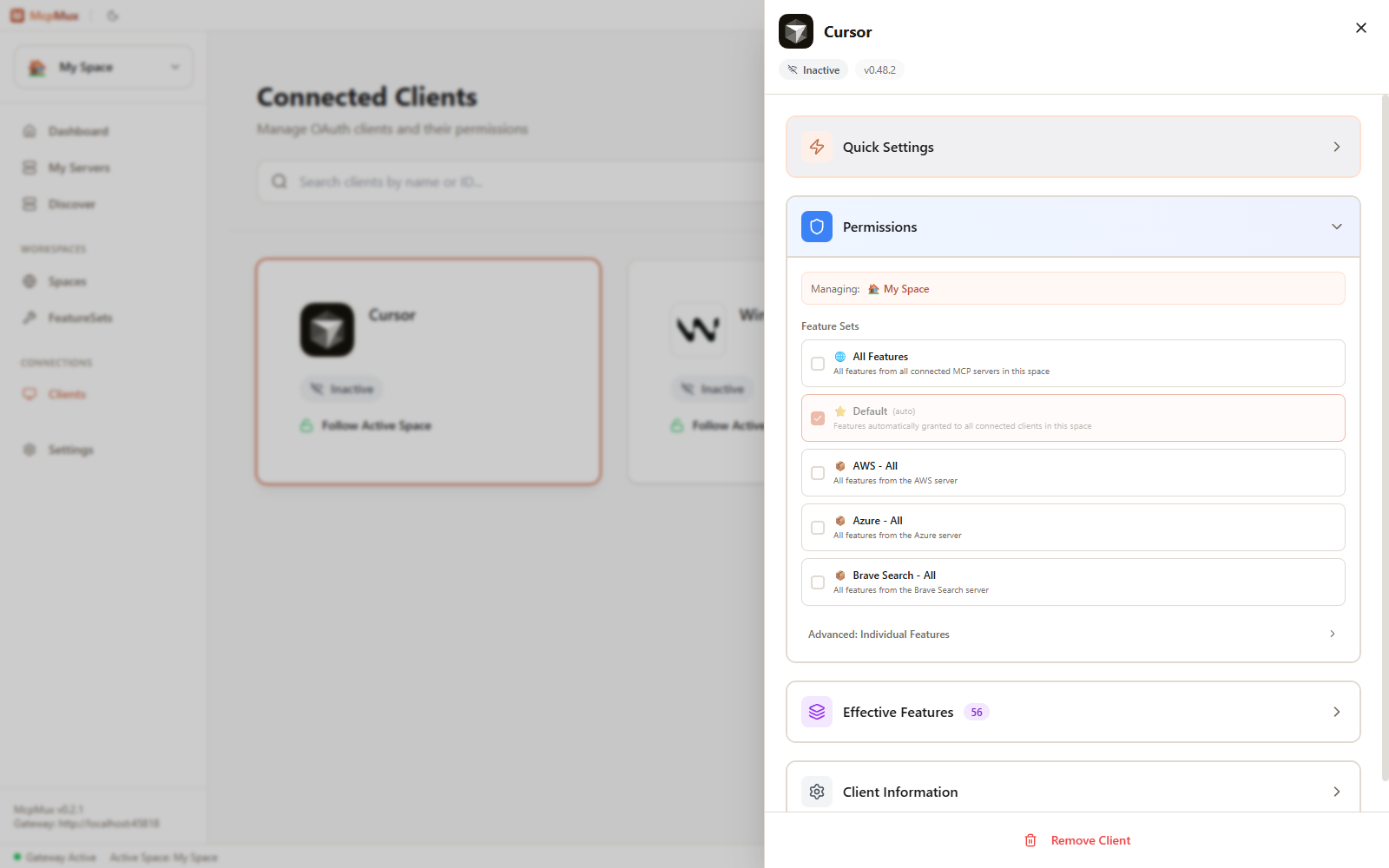
Each client receives FeatureSet grants per Space. This means a single client can have different permissions in different Spaces:
| Client | Work Space | Personal Space |
|---|---|---|
| Cursor | All tools | Read Only |
| Claude Desktop | Developer FeatureSet | All tools |
| Monitoring Bot | Read Only | — (no access) |
This is configured in the Clients page by selecting a client and managing its grants for each Space.
Access Keys
Each client authenticates with McpMux using an access key. Access keys are:
- Generated automatically when a client registers
- Stored encrypted in the OS keychain
- Unique per client
- Revocable at any time
Client Lifecycle
Registration
Clients can be registered in two ways:
- Automatic — when a new client connects to the gateway via OAuth, McpMux prompts you to approve it
- Manual — add a client through the McpMux UI and copy the access key into your client's configuration
Monitoring
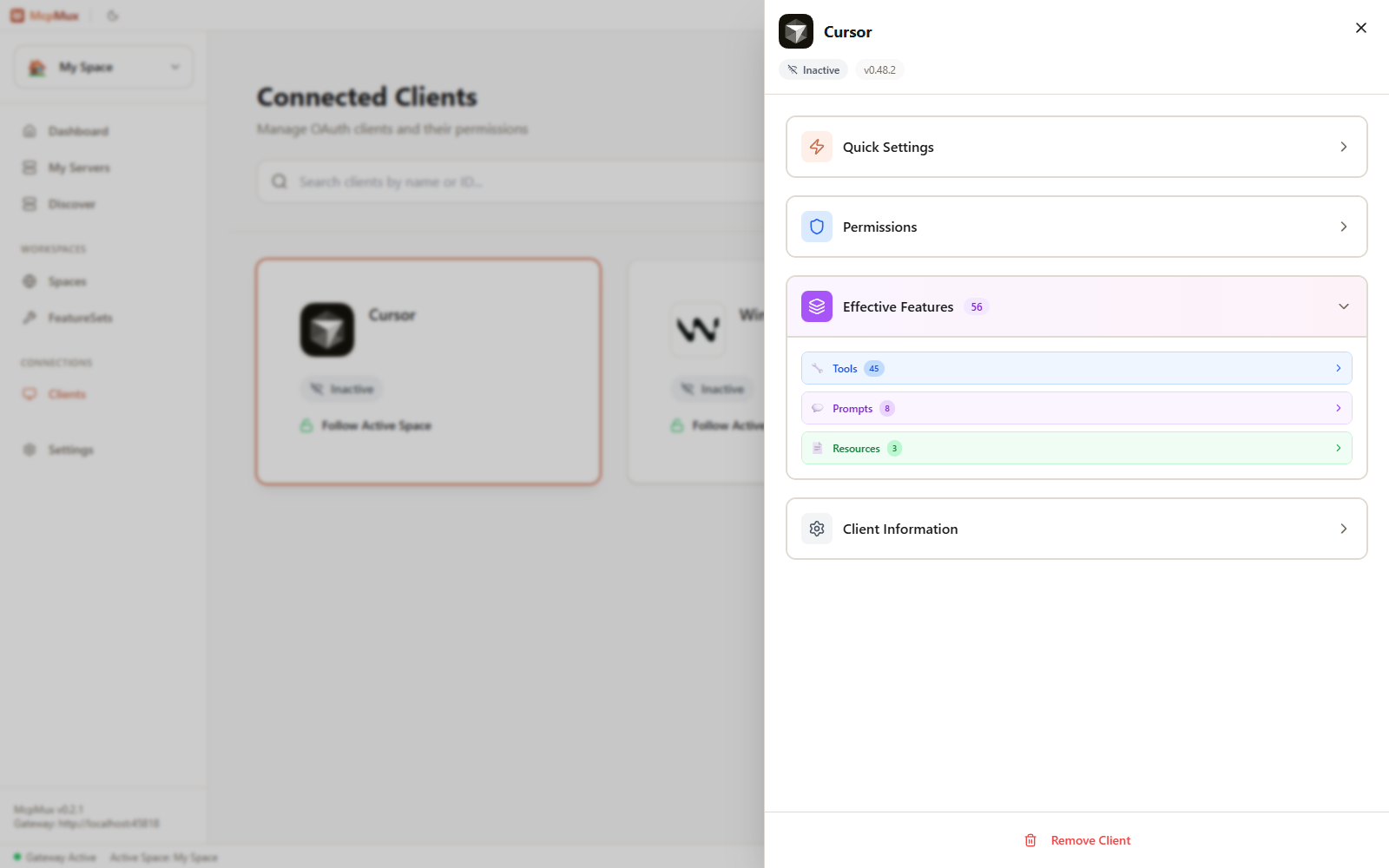
The Clients page shows:
- Each registered client's name and type
- Connection mode (Follow Active / Locked / Ask on Change)
- Last seen timestamp
Disconnecting
You can disconnect or remove a client at any time from the Clients page. This revokes its access key and it will no longer be able to make MCP requests through the gateway.
Next Steps
- Configure FeatureSets to build permission bundles for your clients
- Learn about Spaces to understand how connection modes interact with workspaces
- Set up the Gateway to understand how client requests are routed
FeatureSets — Permission Control
FeatureSets control which MCP tools, resources, and prompts each AI client can access in McpMux. Create role-based permissions, domain bundles, or read-only views.
Server Management
Install, configure, and manage MCP servers in McpMux. Supports stdio and HTTP transports with encrypted credential storage, environment variable overrides, and OAuth authentication.