Configure once. Connect every client.
McpMux is a desktop app that runs a local MCP gateway. Your servers, credentials, and config — all in one place, encrypted and secure.
The problem with MCP today
Every AI client has its own config file. Same servers, same credentials — duplicated everywhere.
Without McpMux
Add a server? Update every client. Rotate an API key? Update every client. All credentials in plain-text JSON files.
With McpMux
One config, one place. Add a server in McpMux and every client has it instantly.
Let your AI curate its own toolset
A hundred tools means wasted tokens and wrong calls. Type @mux optimize and your AI discovers what's available, composes a focused set, and pins it to the folder — from chat. Reads are silent; writes ask first.
Next.js repo — picking the tools it needs:
Everything you need to tame MCP
Servers, credentials, workspaces, and permissions — managed from one app instead of scattered across config files.
Your Command Center
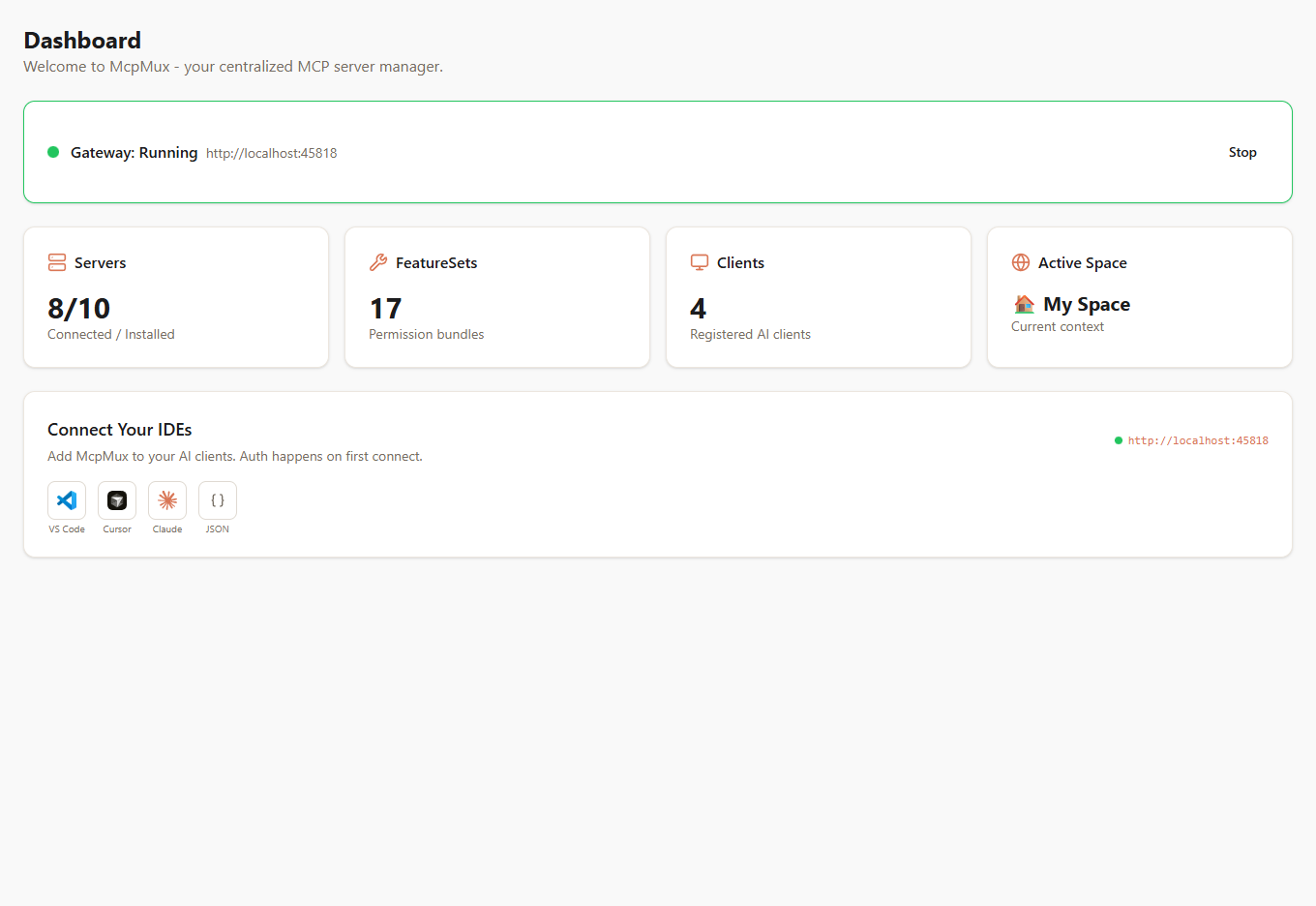
One URL. Every AI client. Zero config files.
Stop editing JSON files in five different places. McpMux gives you a single gateway URL that every AI client connects to. See which servers are running, how many tools are available, and copy the config snippet that replaces all your per-client configs — in one click.
All Your Servers, One Place
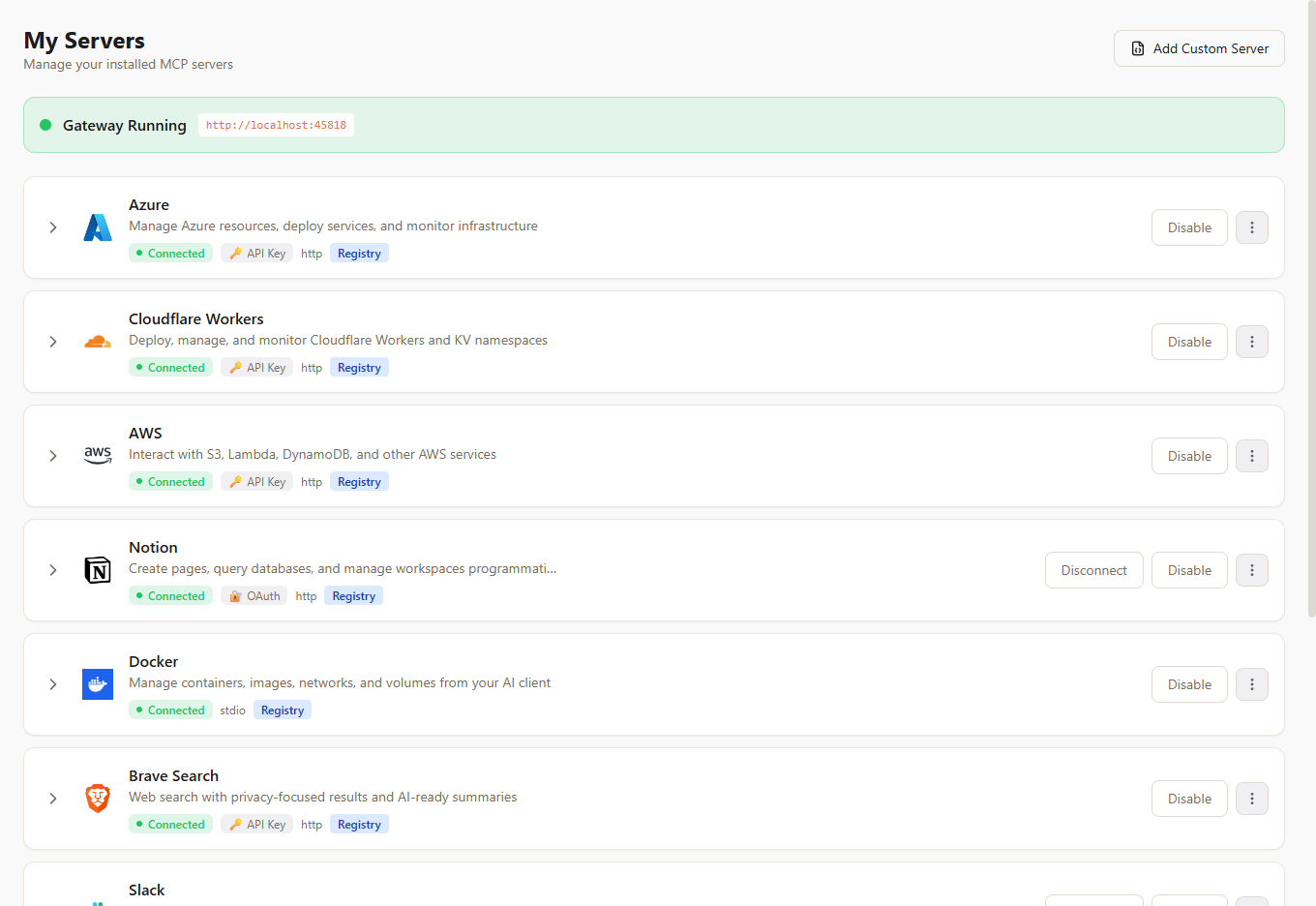
Add a server once. Every client has it instantly.
No more duplicating server configs across Cursor, Claude, VS Code, and Windsurf. Install a server in McpMux and it's immediately available everywhere. See live connection status, expand any server to inspect its tools, prompts, and resources — and manage OAuth tokens that refresh automatically.
100+ Servers, One Click
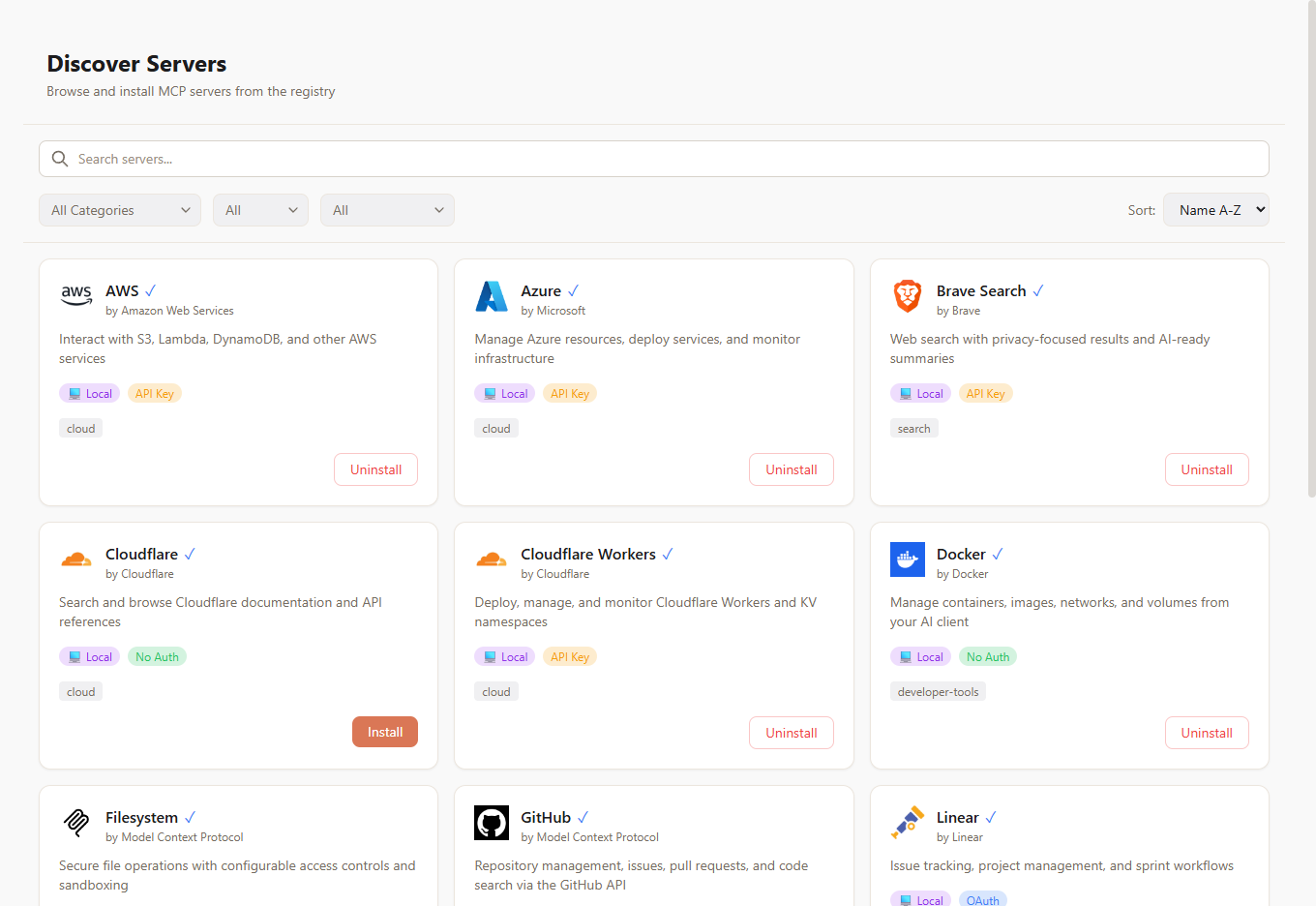
Browse. Click. Done.
Stop hunting for MCP server repos and writing transport configs by hand. Browse a curated registry of 100+ servers — GitHub, Slack, PostgreSQL, Docker, Notion, and more. Click install, enter your credentials, and the server is live across all your AI clients.
Isolated Spaces for Every Context
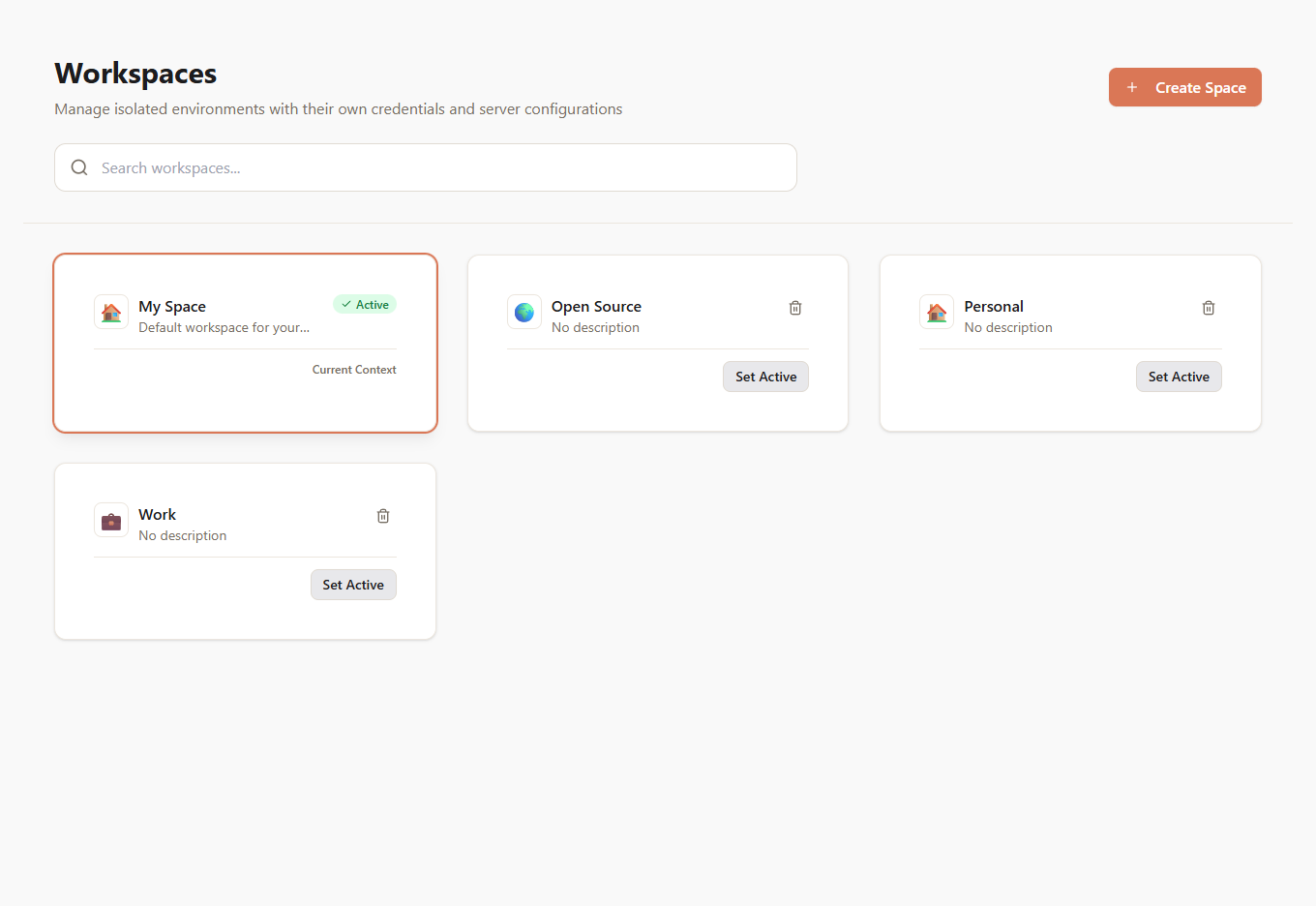
Work servers at work. Personal servers at home.
Create isolated Spaces — each with their own servers, credentials, and permissions. A "Work" Space for company databases, a "Personal" Space for side projects, one per client. Switch in one click from the sidebar and every connected AI app follows. No more accidentally querying your personal database from a work project.
Different Tools for Different Folders
Open your backend repo, get backend tools. Open docs, get docs tools.
Your AI app tells McpMux which folder it's working in. McpMux routes each folder to its own toolset — map a folder once in the Workspaces tab (or let the AI do it) and every future session from that exact path resolves automatically. Matching is per-folder and exact, so nothing leaks across projects.
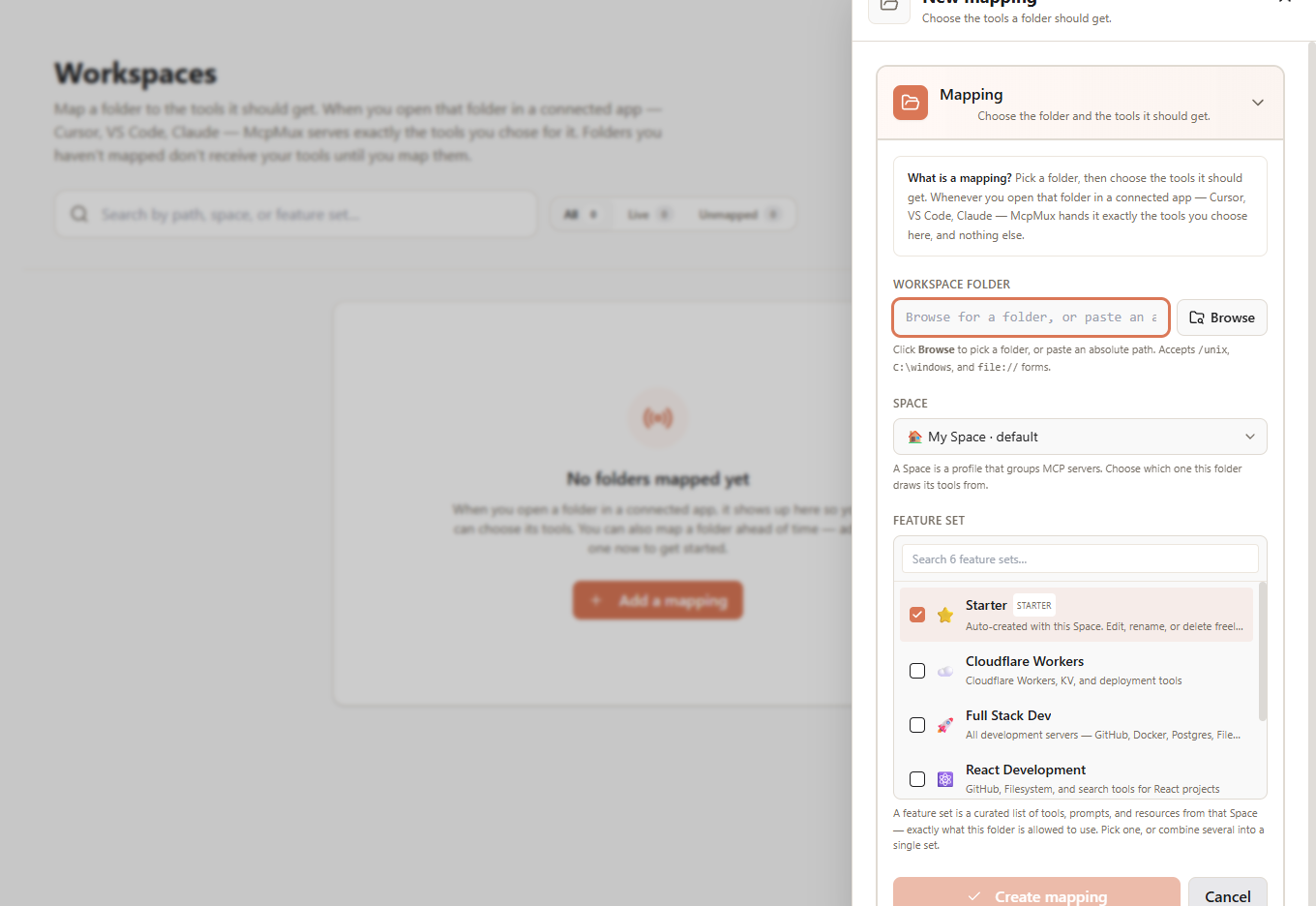
Control What Each Client Can Do
Give Cursor full access. Lock Claude to read-only.
Not every AI client should have the same power. Create Feature Sets — permission bundles that control exactly which tools, prompts, and resources a client can access. Build a "Read Only" set for cautious workflows or a "Dev Tools" set for full power. Assign them per-client so every tool only goes where you want it.
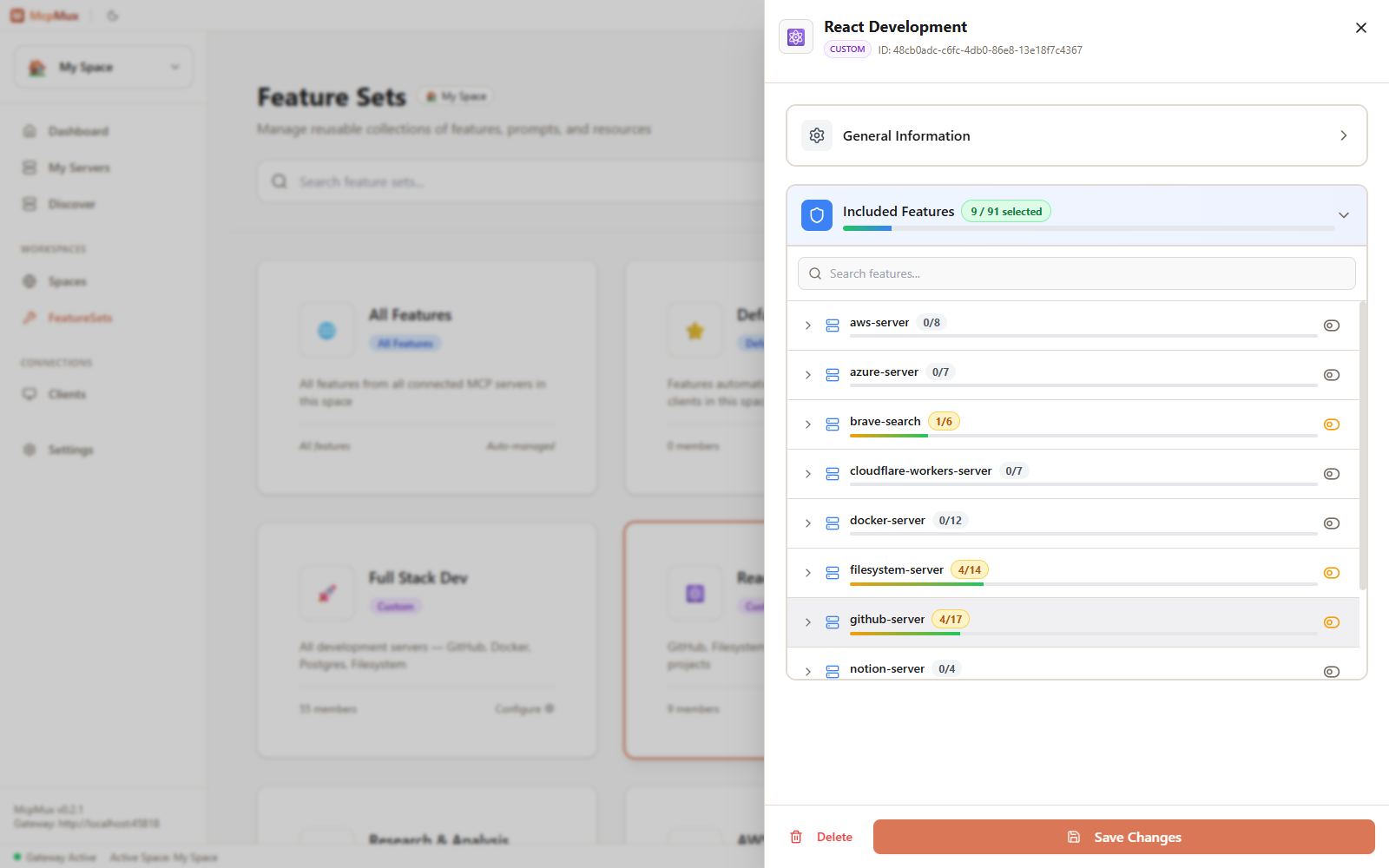
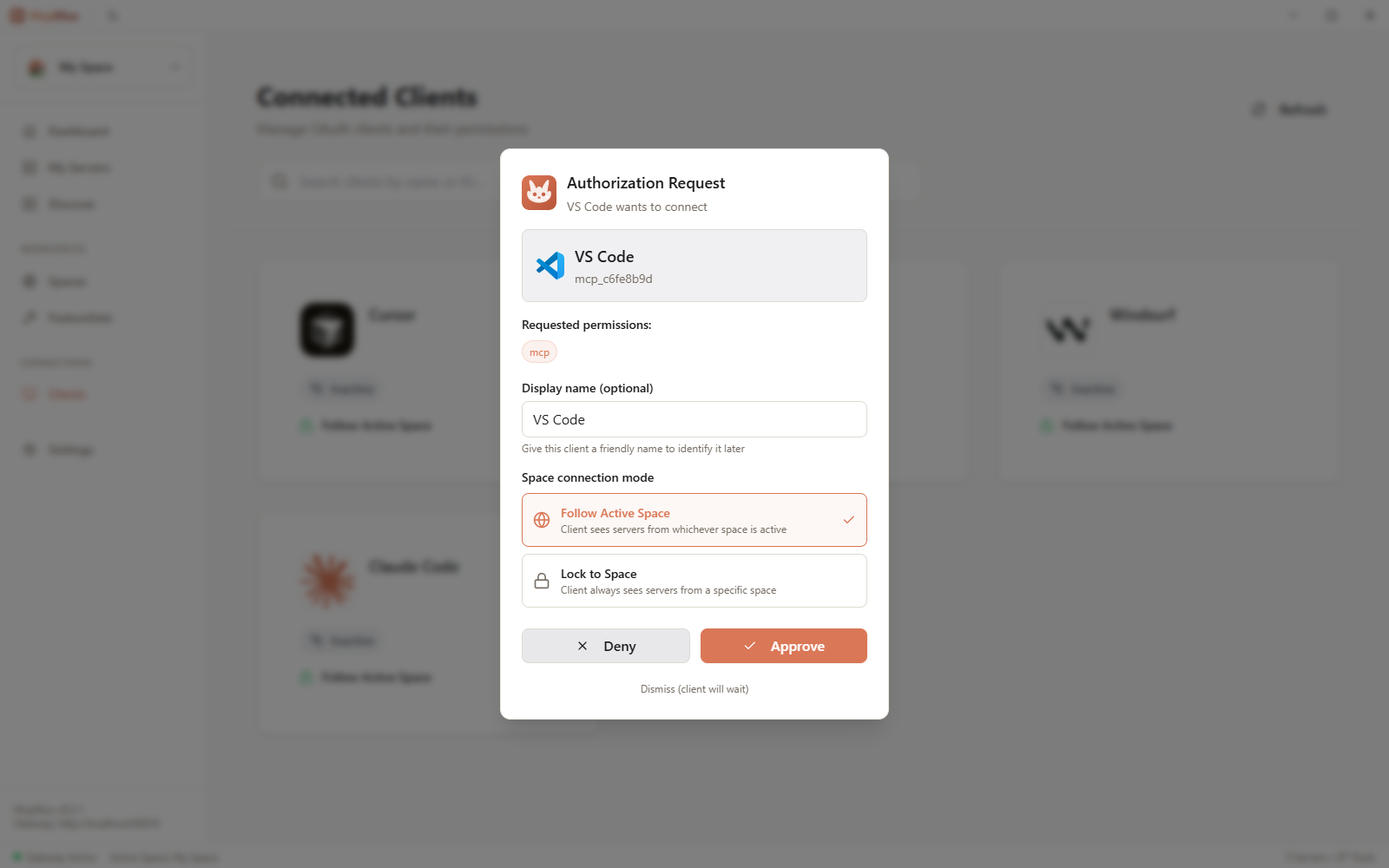
See Every Connected App
Know exactly which AI tools are using your servers.
Cursor, VS Code, Windsurf, Claude Code — see every AI app connected to your gateway in real time, with live status. Routing is workspace-driven: each app's toolset is decided by the folder it reports, not configured per app. Open any app to rename it, see how it's routed, or revoke its connection. New apps authenticate via OAuth with a one-click approval flow.
Three steps. That's it.
The last config file you'll need to touch.
Install servers
Browse the built-in registry and one-click install, or add servers manually. McpMux handles dependencies and setup.
Paste one config
Copy a single JSON snippet into your AI clients. All of them point to the same localhost URL.
{
  "mcpServers": {
    "mcpmux": {
      "type": "http",
      "url": "http://localhost:45818/mcp"
    }
  }
}Done
All tools from all servers are available in every client. McpMux routes calls, refreshes tokens, and keeps credentials encrypted.
Your credentials deserve better than plain-text JSON
MCP defaults to raw API keys in config files. McpMux replaces that with enterprise-grade security.
Encrypted Storage
Secrets encrypted with platform-native DPAPI and stored securely by McpMux.
AES-256-GCM
Field-level database encryption for all sensitive data.
OAuth 2.1 + PKCE
Standard auth with automatic token refresh.
Local-only gateway
Binds to 127.0.0.1 — nothing exposed to the network.
Per-client access keys
Granular permissions for each connected AI client.
Sanitized logs
Tokens and secrets never appear in log files.
Memory zeroization
Secrets wiped from memory after use via zeroize.
Works with your favorite AI tools
Point any MCP-compatible client to one URL. They all share the same servers.
Cursor
AI-powered code editor
VS Code
GitHub Copilot + MCP
Claude Code
Anthropic's CLI agent
Windsurf
Codeium's AI IDE
ChatGPT
OpenAI's AI assistant
JetBrains
IntelliJ, WebStorm & more
Any MCP Host
Gemini CLI, Cline, Zed & more
Ready to supercharge your AI workflow?
Download McpMux and start managing MCP servers the easy way. Free, open source, and built for developers.